

Updated Sep-2021 Test Engine to Practice Test for MS-500 Exam Questions and Answers!
Microsoft 365 Security Administration Certification Sample Questions and Practice Exam
NEW QUESTION 61
You have a Microsoft 365 Enterprise E5 subscription.
You use Windows Defender Advanced Threat Protection (Windows Defender ATP). You plan to use Microsoft Office 365 Attack simulator.
What is a prerequisite for running Attack simulator?
- A. Enable multi-factor authentication (MFA)
- B. Create a Conditional Access App Control policy for accessing Office 365
- C. Configure Advanced Threat Protection (ATP)
- D. Integrate Office 365 Threat Intelligence and Windows Defender ATP
Answer: A
Explanation:
Reference:
https://docs.microsoft.com/en-us/office365/securitycompliance/attack-simulator
NEW QUESTION 62
Your company has a Microsoft 365 subscription.
The company does not permit users to enroll personal devices in mobile device management (MDM).
Users in the sales department have personal iOS devices.
You need to ensure that the sales department users can use the Microsoft Power BI app from iOS devices to access the Power BI data in your tenant.
The users must be prevented from backing up the app's data to iCloud.
What should you create?
- A. a conditional access policy in Microsoft Azure Active Directory (Azure AD) that has a device state condition
- B. a conditional access policy in Microsoft Azure Active Directory (Azure AD) that has a client apps condition
- C. a device compliance policy in Microsoft Endpoint Manager
- D. an app protection policy in Microsoft Endpoint Manager
Answer: D
NEW QUESTION 63
Note: This question is part of series of questions that present the same scenario. Each question in the series contains a unique solution that might meet the stated goals. Some question sets might have more than one correct solution, while others might not have a correct solution.
After you answer a question in this section, you will NOT be able to return to it. As a result, these questions will not appear in the review screen.
You have a Microsoft 365 E5 subscription that is associated to a Microsoft Azure Active Directory (Azure AD) tenant named contoso.com.
You use Active Directory Federation Services (AD FS) to federate on-premises Active Directory and the tenant. Azure AD Connect has the following settings:
* Source Anchor: objectGUID
* Password Hash Synchronization: Disabled
* Password writeback: Disabled
* Directory extension attribute sync: Disabled
* Azure AD app and attribute filtering: Disabled
* Exchange hybrid deployment: Disabled
* User writeback: Disabled
You need to ensure that you can use leaked credentials detection in Azure AD Identity Protection.
Solution: You modify the Password Hash Synchronization settings.
Does that meet the goal?
- A. No
- B. Yes
Answer: B
Explanation:
Explanation
References:
https://docs.microsoft.com/en-us/azure/security/azure-ad-secure-steps
NEW QUESTION 64
Your company uses Microsoft Azure Advanced Threat Protection (ATP).
You enable the delayed deployment of updates for an Azure ATP sensor named Sensor1.
How long after the Azure ATP cloud service is updated will Sensor1 be updated?
- A. 48 hours
- B. 24 hours
- C. 1 hour
- D. 7 days
- E. 12 hours
Answer: B
Explanation:
Explanation/Reference:
Explanation:
Note: The delay period was 24 hours. In ATP release 2.62, the 24 hour delay period has been increased
to 72 hours.
NEW QUESTION 65
Your network contains an Active Directory domain named contoso.com. The domain contains a VPN server named VPN1 that runs Windows Server 2016 and has the Remote Access server role installed.
You have a Microsoft Azure subscription.
You are deploying Azure Advanced Threat Protection (ATP)
You install an Azure ATP standalone sensor on a server named Server1 that runs Windows Server 2016.
You need to integrate the VPN and Azure ATP.
What should you do? To answer, select the appropriate options in the answer area.
NOTE: Each correct selection is worth one point.
Answer:
Explanation:
Explanation
Reference:
https://docs.microsoft.com/en-us/azure-advanced-threat-protection/install-atp-step6-vpn
NEW QUESTION 66
You need to create a policy that identifies content in Microsoft OneDrive that contains credit card numbers.
To complete this task, sign in to the Microsoft 365 portal.
Answer:
Explanation:
You need to configure auto-labeling in 'simulation' mode. In the policy, you can select the 'Credit Card' sensitive info type.
* In the Microsoft 365 compliance center, navigate to sensitivity labels:
Solutions > Information protection
* Select the Auto-labeling (preview) tab.
* Select + Create policy.
* For the page Choose info you want this label applied to: Select one of the templates, such as Financial or Privacy. You can refine your search by using the Show options for dropdown. Or, select Custom policy if the templates don't meet your requirements. Select Next.
* For the page Name your auto-labeling policy: Provide a unique name, and optionally a description to help identify the automatically applied label, locations, and conditions that identify the content to label.
* For the page Choose locations where you want to apply the label: Select OneDrive. Then select Next.
* For the Define policy settings page: Keep the default of Find content that contains to define rules that identify content to label across all your selected locations. The rules use conditions that include sensitive information types and sharing options. For sensitive information types, you can select both built-in and custom sensitive information types.
* Then select Next.
* For the Set up rules to define what content is labeled page: Select + Create rule and then select Next.
* On the Create rule page, name and define your rule, using sensitive information types and then select Save.
* Click Next.
* For the Choose a label to auto-apply page: Select + Choose a label, select a label from the Choose a sensitivity label pane, and then select Next.
* For the Decide if you want to run policy simulation now or later page: Select Run policy in simulation mode if you're ready to run the auto-labeling policy now, in simulation mode. Otherwise, select Leave policy turned off. Select Next.
* For the Summary page: Review the configuration of your auto-labeling policy and make any changes that needed, and complete the wizard.
Reference:
https://docs.microsoft.com/en-us/microsoft-365/compliance/apply-sensitivity-label-automatically?view=o365-wo
NEW QUESTION 67
Please wait while the virtual machine loads. Once loaded, you may proceed to the lab section. This may take a few minutes, and the wait time will not be deducted from your overall test time.
When the Next button is available, click it to access the lab section. In this section, you will perform a set of tasks in a live environment. While most functionality will be available to you as it would be in a live environment, some functionality (e.g., copy and paste, ability to navigate to external websites) will not be possible by design.
Scoring is based on the outcome of performing the tasks stated in the lab. In other words, it doesn't matter how you accomplish the task, if you successfully perform it, you will earn credit for that task.
Labs are not timed separately, and this exam may more than one lab that you must complete. You can use as much time as you would like to complete each lab. But, you should manage your time appropriately to ensure that you are able to complete the lab(s) and all other sections of the exam in the time provided.
Please note that once you submit your work by clicking the Next button within a lab, you will NOT be able to return to the lab.
Username and password
Use the following login credentials as needed:
To enter your username, place your cursor in the Sign in box and click on the username below.
To enter your password, place your cursor in the Enter password box and click on the password below.
Microsoft 365 Username:
admin@[email protected]
Microsoft 365 Password: &=Q8v@2qGzYz
If the Microsoft 365 portal does not load successfully in the browser, press CTRL-K to reload the portal in a new browser tab.
The following information is for technical support only:
Lab instance: 11032396
You need to create a case that prevents the members of a group named Operations from deleting email messages that contain the word IPO.
To complete this task, sign in to the Microsoft Office 365 admin center.
Answer:
Explanation:
See explanation below.
Explanation
1. Navigate to the Security & Compliance Center.
2. In the Security & Compliance Center, click , and then click Create a case.
3. On the New Case page, give the case a name, type an optional description, and then click Save. The case name must be unique in your organization.
The new case is displayed in the list of cases on the eDiscovery page.
After you create a case, the next step is to add members to the case. The eDiscovery Manager who created the case is automatically added as a member. Members have to be assigned the appropriate eDiscovery permissions so they can access the case after you add them.
4. In the Security & Compliance Center, click eDiscovery > eDiscovery to display the list of cases in your organization.
5. Click the name of the case that you want to add members to.
The Manage this case flyout page is displayed.
6. Under Manage members, click Add to add members to the case.You can also choose to add a role group to the case. Under Manage role groups, click Add.
7. In the list of people or role groups that can be added as members of the case, click the check box next to the names of the people or role groups that you want to add.
8. After you select the people or role groups to add as members of the group, click Add.In Manage this case, click Save to save the new list of case members.
9. Click Save to save the new list of case members.
You can use an eDiscovery case to create holds to preserve content that might be relevant to the case. You can place a hold on the mailboxes and OneDrive for Business sites of people who are custodians in the case. You can also place a hold on the group mailbox, SharePoint site, and OneDrive for Business site for an Office 365 Group. Similarly, you can place a hold on the mailboxes and sites that are associated with Microsoft Teams or Yammer Groups. When you place content locations on hold, content is held until you remove the hold from the content location or until you delete the hold.
To create a hold for an eDiscovery case:
1. In the Security & Compliance Center, click to display the list of cases in your organization.
2. Click Open next to the case that you want to create the holds in.
3. On the Home page for the case, click the
4. On the Hold page, click Create.
5. On the Name your hold page, give the hold a name. The name of the hold must be unique in your organization.
6. (Optional) In the Description box, add a description of the hold.
7. Click Next.
8. Choose the content locations that you want to place on hold. You can place mailboxes, sites, and public folders on hold.
a. Exchange email - Click Choose users, groups, or teams and then click Choose users, groups, or teams again. to specify mailboxes to place on hold. Use the search box to find user mailboxes and distribution groups (to place a hold on the mailboxes of group members) to place on hold. You can also place a hold on the associated mailbox for a Microsoft Team, a Yammer Group, or an Office 365 Group. Select the user, group, team check box, click Choose, and then click Done.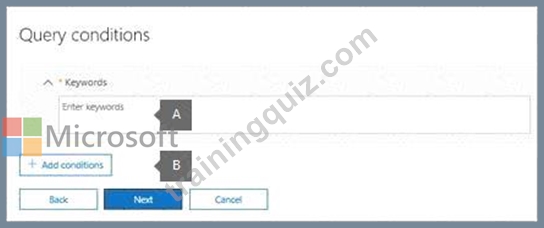
a. In the box under Keywords, type a search query in the box so that only the content that meets the search criteria is placed on hold. You can specify keywords, message properties, or document properties, such as file names. You can also use more complex queries that use a Boolean operator, such as AND, OR, or NOT. If you leave the keyword box empty, then all content located in the specified content locations will be placed on hold.
b. Click Add conditions to add one or more conditions to narrow the search query for the hold. Each condition adds a clause to the KQL search query that is created and run when you create the hold. For example, you can specify a date range so that email or site documents that were created within the date ranged are placed on hold. A condition is logically connected to the keyword query (specified in the keyword box) by the AND operator. That means that items have to satisfy both the keyword query and the condition to be placed on hold.
9. After configuring a query-based hold, click
10. Review your settings, and then click
Reference:
https://docs.microsoft.com/en-us/microsoft-365/compliance/ediscovery-cases?view=o365-worldwide
NEW QUESTION 68
Note: This question is part of a series of questions that present the same scenario. Each question in the series contains a unique solution that might meet the stated goals. Some question sets might have more than one correct solution, while others might not have a correct solution.
After you answer a question in this section, you will NOT be able to return to it. As a result, these questions will not appear in the review screen.
You have a Microsoft 365 E5 subscription that is associated to a Microsoft Azure Active Directory (Azure AD) tenant named contoso.com.
You use Active Directory Federation Services (AD FS) to federate on-premises Active Directory and the tenant.
Azure AD Connect has the following settings:
* Source Anchor: objectGUID
* Password Hash Synchronization: Disabled
* Password writeback: Disabled
* Directory extension attribute sync: Disabled
* Azure AD app and attribute filtering: Disabled
* Exchange hybrid deployment: Disabled
* User writeback: Disabled
You need to ensure that you can use leaked credentials detection in Azure AD Identity Protection.
Solution: You modify the Password Hash Synchronization settings.
Does that meet the goal?
- A. No
- B. Yes
Answer: B
Explanation:
Explanation/Reference:
References:
https://docs.microsoft.com/en-us/azure/security/azure-ad-secure-steps
NEW QUESTION 69
You have a Microsoft 365 subscription that contains a Microsoft SharePoint Online site named Site1. Site1 contains the folders shown in the following table.
At 09:00, you create a Microsoft Cloud App Security policy named Policy1 as shown in the following exhibit.
After you create Policy1, you upload files to Site1 as shown in the following table.
For each of the following statements, select Yes if the statement is true. Otherwise, select No.
NOTE: Each correct selection is worth one point.
Answer:
Explanation:
Reference:
https://docs.microsoft.com/en-us/cloud-app-security/data-protection-policies
NEW QUESTION 70
You have a Microsoft 365 subscription that uses a default domain name of fabrikam.com.
You create a safe links policy, as shown in the following exhibit.
Which URL can a user safely access from Microsoft Word Online?
- A. malware.fabrikam.com
- B. fabrikam.contoso.com
- C. www.malware.fabrikam.com
- D. fabrikam.phishing.fabrikam.com
Answer: C
Explanation:
Explanation
References:
https://docs.microsoft.com/en-us/office365/securitycompliance/set-up-a-custom-blocked-urls-list-wtih-atp
NEW QUESTION 71
Please wait while the virtual machine loads. Once loaded, you may proceed to the lab section. This may take a few minutes, and the wait time will not be deducted from your overall test time.
When the Next button is available, click it to access the lab section. In this section, you will perform a set of tasks in a live environment. While most functionality will be available to you as it would be in a live environment, some functionality (e.g., copy and paste, ability to navigate to external websites) will not be possible by design.
Scoring is based on the outcome of performing the tasks stated in the lab. In other words, it doesn't matter how you accomplish the task, if you successfully perform it, you will earn credit for that task.
Labs are not timed separately, and this exam may more than one lab that you must complete. You can use as much time as you would like to complete each lab. But, you should manage your time appropriately to ensure that you are able to complete the lab(s) and all other sections of the exam in the time provided.
Please note that once you submit your work by clicking the Next button within a lab, you will NOT be able to return to the lab.
Username and password
Use the following login credentials as needed:
To enter your username, place your cursor in the Sign in box and click on the username below.
To enter your password, place your cursor in the Enter password box and click on the password below.
Microsoft 365 Username:
admin@[email protected]
Microsoft 365 Password: #HSP.ug?$p6un
If the Microsoft 365 portal does not load successfully in the browser, press CTRL-K to reload the portal in a new browser tab.
The following information is for technical support only:
Lab instance: 11122308


You need to protect against phishing attacks. The solution must meet the following requirements:
* Phishing email messages must be quarantined if the messages are sent from a spoofed domain.
* As many phishing email messages as possible must be identified.
The solution must apply to the current SMTP domain names and any domain names added later.
To complete this task, sign in to the Microsoft 365 admin center.
Answer:
Explanation:
See explanation below.
Explanation
1. After signing in to the Microsoft 365 admin center, select Security, Threat Management, Policy, then ATP Anti-phishing.
2. Select Default Policy to refine it.
3. In the Impersonation section, select Edit.
4. Go to Add domains to protect and select the toggle to automatically include the domains you own.
5. Go to Actions, open the drop-down If email is sent by an impersonated user, and choose the Quarantine message action.
Open the drop-down If email is sent by an impersonated domain and choose the Quarantine message action.
6. Select Turn on impersonation safety tips. Choose whether tips should be provided to users when the system detects impersonated users, domains, or unusual characters. Select Save.
7. Select Mailbox intelligence and verify that it's turned on. This allows your email to be more efficient by learning usage patterns.
8. Choose Add trusted senders and domains. Here you can add email addresses or domains that shouldn't be classified as an impersonation.
9. Choose Review your settings, make sure everything is correct, select Save, then Close.
Reference:
https://support.office.com/en-us/article/protect-against-phishing-attempts-in-microsoft-365-86c425e1-1686-430a
https://docs.microsoft.com/en-us/microsoft-365/security/office-365-security/set-up-anti-phishing-policies?view=
NEW QUESTION 72
You have a hybrid deployment of Microsoft 365 that contains the users shown in the following table.
You plan to use Microsoft 365 Attack Simulator.
You need to identify the users against which you can use Attack Simulator.
Which users should you identify?
- A. User3 and User4 only
- B. User3 only
- C. User1, User2, User3, and User4
- D. User1 and User3 only
Answer: A
Explanation:
Explanation
Each targeted recipient must have an Exchange Online mailbox.
Reference:
https://docs.microsoft.com/en-us/microsoft-365/security/office-365-security/attack-simulator?view=o365-worldw
NEW QUESTION 73
Note: This question is part of a series of questions that present the same scenario. Each question in the series contains a unique solution that might meet the stated goals. Some question sets might have more than one correct solution, while others might not have a correct solution.
After you answer a question in this section, you will NOT be able to return to it. As a result, these questions will not appear in the review screen.
You have a Microsoft 365 subscription that contains the users shown in the following table.
You discover that all the users in the subscription can access Compliance Manager reports.
The Compliance Manager Reader role is not assigned to any users.
You need to recommend a solution to prevent a user named User5 from accessing the Compliance Manager reports.
Solution: You recommend assigning the Compliance Manager Reader role to User5.
Does this meet the goal?
- A. No
- B. Yes
Answer: A
NEW QUESTION 74
You have a Microsoft 365 subscription. Auditing is enabled.
A user named User1 is a member of a dynamic security group named Group1.
You discover that User1 is no longer a member of Group1.
You need to search the audit log to identify why User1 was removed from Group1.
Which two actions should you use in the search? To answer, select the appropriate activities in the answer area.
NOTE: Each correct selection is worth one point.
Answer:
Explanation:
Explanation

References:
https://docs.microsoft.com/en-us/office365/securitycompliance/search-the-audit-log-in-security-and-compliance
NEW QUESTION 75
Note: This question is part of a series of questions that present the same scenario. Each question in the series contains a unique solution that might meet the stated goals. Some question sets might have more than one correct solution, while others might not have a correct solution.
After you answer a question in this section, you will NOT be able to return to it. As a result, these questions will not appear in the review screen.
You have a Microsoft 365 subscription that contains the users shown in the following table.
You discover that all the users in the subscription can access Compliance Manager reports.
The Compliance Manager Reader role is not assigned to any users.
You need to recommend a solution to prevent a user named User5 from accessing the Compliance Manager reports.
Solution: You recommend modifying the licenses assigned to User5.
Does this meet the goal?
- A. No
- B. Yes
Answer: B
NEW QUESTION 76
How should you configure Azure AD Connect? To answer, select the appropriate options in the answer area.
NOTE: Each correct selection is worth one point.
Answer:
Explanation:
Explanation
NEW QUESTION 77
You have a Microsoft 365 E5 subscription.
All computers run Windows 10 and are onboarded to Windows Defender Advanced Threat Protection (Windows Defender ATP).
You create a Windows Defender machine group named MachineGroupl.
You need to enable delegation for the security settings of the computers in MachineGroupl.
Which three actions should you perform in sequence? To answer, move the appropriate actions from the list of actions to the answer area and arrange them in the correct order.
Answer:
Explanation:
Explanation
NEW QUESTION 78
You need to recommend a solution to protect the sign-ins of Admin1 and Admin2.
What should you include in the recommendation?
- A. a device compliance policy
- B. a sign-in risk policy
- C. a user risk policy
- D. an access review
Answer: C
Explanation:
References:
https://docs.microsoft.com/en-us/azure/active-directory/identity-protection/howto-user-risk-policy
Topic 2, Litware, Inc
Overview
Litware, Inc. is a financial company that has 1,000 users in its main office in Chicago and 100 users in a branch office in San Francisco.
Existing Environment
Internal Network Infrastructure
The network contains a single domain forest. The forest functional level is Windows Server 2016.
Users are subject to sign-in hour restrictions as defined in Active Directory.
The network has the IP address range shown in the following table.
The offices connect by using Multiprotocol Label Switching (MPLS).
The following operating systems are used on the network:
* Windows Server 2016
* Windows 10 Enterprise
* Windows 8.1 Enterprise
The internal network contains the systems shown in the following table.
Litware uses a third-party email system.
Cloud Infrastructure
Litware recently purchased Microsoft 365 subscription licenses for all users.
Microsoft Azure Active Directory (Azure AD) Connect is installed and uses the default authentication settings. User accounts are not yet synced to Azure AD.
You have the Microsoft 365 users and groups shown in the following table.
Planned Changes
Litware plans to implement the following changes:
* Migrate the email system to Microsoft Exchange Online
* Implement Azure AD Privileged Identity Management
Security Requirements
Litware identities the following security requirements:
* Create a group named Group2 that will include all the Azure AD user accounts. Group2 will be used to provide limited access to Windows Analytics
* Create a group named Group3 that will be used to apply Azure Information Protection policies to pilot users. Group3 must only contain user accounts
* Use Azure Advanced Threat Protection (ATP) to detect any security threats that target the forest
* Prevent users locked out of Active Directory from signing in to Azure AD and Active Directory
* Implement a permanent eligible assignment of the Compliance administrator role for User1
* Integrate Windows Defender and Windows Defender ATP on domain-joined servers
* Prevent access to Azure resources for the guest user accounts by default
* Ensure that all domain-joined computers are registered to Azure AD
Multi-factor authentication (MFA) Requirements
Security features of Microsoft Office 365 and Azure will be tested by using pilot Azure user accounts.
You identify the following requirements for testing MFA.
* Pilot users must use MFA unless they are signing in from the internal network of the Chicago office. MFA must NOT be used on the Chicago office internal network.
* If an authentication attempt is suspicious, MFA must be used, regardless of the user location
* Any disruption of legitimate authentication attempts must be minimized General Requirements Litware want to minimize the deployment of additional servers and services in the Active Directory forest.
NEW QUESTION 79
Note: This question is part of a series of questions that present the same scenario. Each question in the series contains a unique solution that might meet the stated goals. Some questions sets might have more than one correct solution, while others might not have a correct solution.
After you answer a question in this section, you will NOT be able to return to it. As a result, these questions will not appear in the review screen.
You have an on-premises Active Directory domain named contoso.com.
You install and run Azure AD Connect on a server named Server1 that runs Windows Server.
You need to view Azure AD Connect events.
You use the Application event log on Server1.
Does that meet the goal?
- A. No
- B. Yes
Answer: B
Explanation:
References:
https://support.pingidentity.com/s/article/PingOne-How-to-troubleshoot-an-AD-Connect-Instance
NEW QUESTION 80
You have a Microsoft 365 subscription.
You create a retention label named Label1 as shown in the following exhibit.
You publish Label1 to SharePoint sites.
Use the drop-down menus to select the answer choice that completes each statement based on the information presented in the graphic.
NOTE: Each correct selection is worth one point.
Answer:
Explanation:
Explanation:
References:
https://docs.microsoft.com/en-us/office365/securitycompliance/labels
NEW QUESTION 81
You have a Microsoft Defender Advanced Threat Protection (Microsoft Defender ATP) deployment that has the custom network indicators turned on. Microsoft Defender ATP protects two computers that run Windows
10 as shown in the following table.
Microsoft Defender ATP has the machine groups shown in the following table.
From Microsoft Defender Security Center, you create the URLs/Domains indicators shown in the following table.
For each of the following statements, select Yes if the statement is true. Otherwise, select No.
NOTE: Each correct selection is worth one point.
Answer:
Explanation:
Explanation
NEW QUESTION 82
You have a Microsoft 365 subscription.
You are creating a retention policy named Retention1 as shown in the following exhibit.
You apply Retention1 to SharePoint sites and OneDrive accounts.
Use the drop-down menus to select the answer choice that completes each statement based on the information presented in the graphic.
NOTE: Each correct selection is worth one point.
Answer:
Explanation:
NEW QUESTION 83
Please wait while the virtual machine loads. Once loaded, you may proceed to the lab section. This may take a few minutes, and the wait time will not be deducted from your overall test time.
When the Next button is available, click it to access the lab section. In this section, you will perform a set of tasks in a live environment. While most functionality will be available to you as it would be in a live environment, some functionality (e.g., copy and paste, ability to navigate to external websites) will not be possible by design.
Scoring is based on the outcome of performing the tasks stated in the lab. In other words, it doesn't matter how you accomplish the task, if you successfully perform it, you will earn credit for that task.
Labs are not timed separately, and this exam may more than one lab that you must complete. You can use as much time as you would like to complete each lab. But, you should manage your time appropriately to ensure that you are able to complete the lab(s) and all other sections of the exam in the time provided.
Please note that once you submit your work by clicking the Next button within a lab, you will NOT be able to return to the lab.
Username and password
Use the following login credentials as needed:
To enter your username, place your cursor in the Sign in box and click on the username below.
To enter your password, place your cursor in the Enter password box and click on the password below.
Microsoft 365 Username:
admin@[email protected]
Microsoft 365 Password: #HSP.ug?$p6un
If the Microsoft 365 portal does not load successfully in the browser, press CTRL-K to reload the portal in a new browser tab.
The following information is for technical support only:
Lab instance: 11122308


You need to create a retention policy that contains a data label. The policy must delete all Microsoft Office 365 content that is older than six months.
To complete this task, sign in to the Microsoft 365 admin center.
Answer:
Explanation:
Creating Office 356 labels is a two-step process. The first step is to create the actual label which includes the name, description, retention policy, and classifying the content as a record. Once this is completed, the second step requires the deployment of a label using a labelling policy which specifies the specific location to publish and applying the label automatically.
To create an Office 365 label, following these steps:
1. Open Security and Compliance Centre;
2. Click on Classifications;
3. Click on Labels;
4. The label will require configuration including: name your label (Name), add a description for the admins ( Description for Admins), add a description for the users (Description for Users);
5. Click Next once the configuration is completed;
6. Click Label Settings on the left-hand side menu;
7. The Label Settings will need to be configured. On this screen, you can toggle the Retention switch to either
"on" or "off". If you choose "on", then you can answer the question "When this label is applied to content" with one of two options. The first option is to . From the pick boxes, you can choose the length of retention and upon the end of the retention, the action that will take place. The three actions are to delete the data, trigger an approval flow for review, or nothing can be actioned. The second option is to not retain the data after a specified amount of time or based on the age of the data; and
8. The label has now been created.
To create a label policy, follow these steps:
1. Open Security and Compliance Centre
2. Click on Data Governance, Retention
3. Choose Label Policies box at the top of the screen; and
4. There are now two options. The first is to . If your organization wants its end users to apply the label manually, then this is the option you would choose. Note that this is location based. The second option is to Auto-apply Labels. With Auto-apply, you would have the ability to automatically apply a label when it meets the specified criteria.
References:
https://www.maadarani.com/office-365-classification-and-retention-labels/
NEW QUESTION 84
......
Certification dumps Microsoft 365 MS-500 guides - 100% valid: https://www.trainingquiz.com/MS-500-practice-quiz.html
100% Pass Your MS-500 Microsoft 365 Security Administration at First Attempt with TrainingQuiz: https://drive.google.com/open?id=1fcrK_SNg-gP2E551g6jpBx_nXzXiEH48
